Mahjong Solitaire
Interactive Tabletop Art
Soothsayer Rev 1.58.12
Schema2
This page continues the discussion that began on the Schema1 page. We will be discussing the various Columns in the spreadsheet, followed by an overview of the formulas that are, for the most part, buried in Row 2.
Columns A and M are Checkboxes
Columns B:K are transferred to the Mobile App, as a $B$3:$K$1622 read only block.
Column L is a fake status indicator that APPEARS to be a suffix for the Score.
Columns N:O are Commentary, with room for a Hyperlink Thumbnail when you want to save a thousand words.
Columns P:AM support the heavy duty calculations for the 24 local constraints that are associated with EACH active Tile: 9 Above, 3 sideL, 3 sideR, 9 Below.
Other than grouping like tiles by their Priority (the most severe of the Bottleneck in each Group) the Spreadsheet does not concern itself with the global constraints of (12, 13, 14, 23, 24, 34) pairings for a Tile quadruple.
To repeat an earlier point, PAIRING is a external constraint that the program does NOT enforce.
A honest game will have paired tiles where the Score for the individual Tiles are sequenced 100,101 200,201 300,301 so that the pairing intention will be obvious.
Column AN is a docking column for the Heat Map.
Columns AO:AV are set up to support Degrees of Freedom Analysis. The basic concept is simple enough; the program walks through the state sequence that you have currently defined, and hard writes the:
TOTAL NUMBER of REVEALS that are available at each step, with an adjacent Sparkline to help you visualize the Step by Step data.
A SUPER TOTAL that accumulates the Step by Step Reveals, also with an adjacent Sparkline.
A Commentary Column so that the user will be able to highlight the distinguishing features in a particular solution set.
If you LIKE the results that are provided by THAT PARTICULAR HEURISTIC, you can simply Copy/Paste the most recent Temporary Buffer Case into eight new Columns, to the right of your earlier trials. Based on the hard written step values for Tile Name, Score, and Reveals, the spreadsheet can then look up the Tile Images, recalculate the Super Total, and display the two Sparklines.
You will now have a series of trials that you can sort and filter to a Fair Thee Well,
DIRECTLY compare the effectiveness of your various Heuristics,
with regard to the Degrees of Freedom that you provided,
when you provided them,
and how close you came to running out of available pairs.
And how often your Heuristic swallowed the Trap Bait.
There’s a LOT of research out there, which has repeatedly demonstrated that a Greedy Algorithm (take the biggest bite that you can swallow) performs very nearly a well as any of several exhaustive lookahead algorithms.
The Devil is in the Details.
Columns
A: is a simple checkbox. It has several uses:
It can be a ToDo list.”This row needs some attention.”
It can be used to support an arbitrary filter. If you want to filter and then sort all of the
pink, left-handed widgets by location, go for it.It can be used to chase down the Heat Map that’s docked (somewhere) in Column AN. Check a few boxes where you NEED the Heat Map, rapidly pg dn to FIND the chart, Check a few of the rows that are currently UNDER the Heat Map, and then filter for TRUE. Now you’ll only need to drag the chart a few rows.
B: is the True vAxis for the Lattice, but we only use it when we have to sort. Hold that thought.
C: is the hAxis
D: would be the zAxis if there were a zAxis, but there’s NOT, so instead we use Color to indicate the Layer.
Layer sequencing is critical. In a chart the Earlier Entries are overwritten by the Later Entries, so for the Layers to make visual sense, you must present the Bottom Layers FIRST. Conceptually, you’re looking down on the stairsteps at the BACK/UPPER/NORTH edge of the puzzle.
Clicking on the Legend, in the Mobile app, causes a Layer to become transparent, even to the ToolTips. If you only want to look at Layer 1, make 2 3 4 5 transparent.
On a desktop computer, the Charts are sensitive to the standard filter, so you would just select layer 1.
E2 creates a composite index that spills into the following 1620 rows, and it’s easily the most elegant bit of code in the entire spreadsheet.
The first line places a label in Row 2 and then defines several arrays that will be pulled into the processor memory ONCE, and then used 1620 times.
We calculate a simple 5 digit integer index, formatted as “00000”, then multiply by -1 to poison it if the Tile has been removed from the puzzle.
A negative index is illegal so an XLOOKUP will fail to find an address that has, literally, dropped out of sight, and Chart coordinates that are out of bounds are simply clipped.
={"At";Let(
  Revision,      "REV 1.58.14 Poison the Index",
  Date,          "July 14, 2026",
  Rd,            B$3:B$1622,
  Ca,            C$3:C$1622,
  La,            D$3:D$1622,
  Score,         K$3:K$1622,
  YourThreshold, AH$1,

  ArrayFormula(
    (Rd*1000 + CA*10 + La) *
    If(Score < YourThreshold, -1, +1)
  )
)}
F: Is the Tile Name. Mahjong is 200 years old, and with THAT much history you’re going to have more than a few different opinion about what the names “should” be. We’ve pretty much defaulted to the names that are used in the Unicode Block for Mahjong Tiles, see https://en.wikipedia.org/wiki/Mahjong_tiles
G: contains XLOOKUP images of the actual tiles, that are in the Tile Doctor tab. We purchased a commercial set of tile images that included naked .png Glyphs, which allows us to control the cell backgrounds. We use Color to indicate the Layers, and Chebyshev Shadowing (on the Mobile) to indicate Reveals.
H: Priority. This sequence will seem backwards, so we’ll just go for it. Priority is nothing more than a tricky sort key. We examine each of the Tiles in a four Tile group, and then provide that MAXIMUM Bottleneck Value as a Priority sort key for the ENTIRE group of four Tiles. Hold that thought for a moment, as our next column is about Bottlenecks.
I: A Bottleneck is a Tile that is PREVENTING other Tiles from being Revealed. When you can manage to remove the most severe of your Bottleneck tiles, they’ll provide the MOST Bang! for the Buck. A Bottleneck can constrain (cover) 9 different Tile positions, but four is the maximum number of CONCURRENT covering Bottlenecks. A Bottleneck can also constrain 3 sideL plus 3 sideR tiles, but only 4 CONCURRENT side Bottlenecks. So the number of Bottlenecks PER Tile ranges from 0 to 8.
J: We’re also tracking Reveal which is simply the flip side of a Bottleneck. For a particular tile “Reveal” seems like an odd name, but when we COUNT the number of tiles that are
REVEALED BECAUSE THEY HAVE REACHED ZERO,
then Reveal is suddenly an obvious name.K: Score in nothing more than a step index. But WAIT …..!
While the spreadsheet does NOT enforce pairing, Scores that are sequence 100,101 200,201 300,301 makes the intent pretty obvious.
YourThreshold is the, Ummm, threshold for the Tiles that you HAVE NOT YET PAIRED. Tiles that have already been removed from consideration will have a POISONED Index (See E2) and they will, quite literally, drop out of sight.
To close the loop, BOUNDARY CONDITIONS are a very similar circumstance. If you’re looking for the calculated index of a Constraint that’s to the LEFT of Column 1, it won’t exist either.
L: is a fake column that’s used to protect the numeric purity of Score, while still indicating it’s status. The Score is RIGHT Justified while the Status ( =If(Score < YourThreshold, “.”, “~”) is LEFT Justified. So it LOOKS LIKE a concatenated value but it’s really TWO separate values that “just happen” to be jammed together.
M: is a Heads UP!! Checkbox. It’s provided specifically to flag tiles that LOOK LIKE they might be part of a trap. Traps deserve a full page of their own, and you won’t really understand traps until you’ve tried to design a few of your own.
N: Is commentary. It could just as well be called “Bragging Rights.” Properly used it makes a solution set MORE interesting by calling the user’s attention to the bits and pieces that they might otherwise have overlooked.
Take a CLOSE look at the Commentary Header in O2. It’s a Drop Down menu that, significantly, will appear on the FIRST Row of every page that you print. The printed pages include the usual Header and Footer information but they don’t tell you WHY you printed the report.
The Drop Down ALSO serves as a Semaphore, a warning that somebody ELSE is using a particular puzzle. You should be very careful about what you update when you’re sharing a puzzle with someone else. And, when you’re done, PLEASE reset the Semaphore to
“0) The icon menu will take you to ………”The names in the Drop Down list EXACTLY match the Saved Filter Views that are listed under the Grid Icon near at the right end of the Menu Banner. Yes, you’ll need to click in BOTH places. They’re not linked. You SHOULD always be working in a Saved Filter View, and we’ll be locking down the base page for each puzzle once it has been vetted and assigned a QR Code.
There will (eventually) be a page that’s dedicated to Workflows and Reports.
O: is for Hyperlinked Thumbnails, so that users can access Commentary related images that are stored in the Cloud. We DO NOT want to blow up the size of the spreadsheet by storing images that are seldom accessed.
P:AM are the 24 Constraint Checks that we make for EVERY active Tile. The checks are fast, but 24×1620=38,880 checks, EVERY TIME you remove a Tile, is still a very large number.
A successful hit that returned “Green Dragon @ 05143’
for example, would be counted as a Constraint.
This is NOT Spreadsheet 101, The code is heavily commented, so we’ll not repeat the comments, but it’s so carefully optimized that the compute engine is begging for mercy.
=LET(
    where,     "ULA +1-1+1 Above",
    whereC,    "REV 1.58.0: Offset vector - Up, Left, Above",
    Rd,        $B$3:$B$1622,
    RdC,       "REV 1.58.0: Base Row array.",
    Ca,        $C$3:$C$1622,
    CaC,       "REV 1.58.0: Base Column array.",
    La,        $D$3:$D$1622,
    LaC,       "REV 1.58.0: Base Layer array.",
    loc_arr,   $E$3:$E$1622,
    loc_arrC,  "REV 1.58.0: Pure numeric locations for
                lightning-fast matching.",
    name_arr,  $F$3:$F$1622,
    name_arrC, "REV 1.58.0: Tile names to pull
                upon successful lookup.",
    {where;
    ARRAYFORMULA(
        IF(name_arr = "",
            "",
            LET(
                target,  (Rd + 1) * 1000 + (Ca -1) * 10 + (La + 1),
                targetC, "REV 1.58.0: Computes pure integer
                          address. Fails naturally if
                          out of bounds.",
                hit,  XLOOKUP(target, loc_arr, name_arr, ""),
                hitC, "REV 1.58.0: Single lookup attempts
                      to grab the target tile's name.",
                IF(hit = "", "", hit & " @ " & TEXT(target, "00000"))
            )
        )
    )}
)
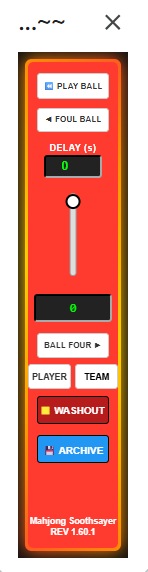
Analysis & Threshold Control
Columns AN:AR are best discussed in context.
- PLAY BALL: resets YourThreshold and Delay to zero, and clears ΣR
- Note that HUD sequences will ALWAYS BE BY SCORE, regardless of the user's sort order.
- The SUM column uses SUBTOTALS so it DOES honor your Standard Filter.
- EACH SUM column is the SUBTOTAL SUM of of the PREVIOUS Values in the ΣR column, if your sort order is OTHER THAN by score, the SUM won't be very useful.
- Tiles without an associated Scores will be ignored (Except for PLAYER)
- Tiles that HAVE been removed, Score < YourThreshold are remembered INDIRECTLY, in that they are still included in the static ΣR values.
- FOUL BALL: sets YourThreshold to the MAXIMUM Score that's LESS THAN the current value of Threshold, which is the PREVIOUS Score
- DELAY: provides more time BETWEEN steps. It defaults to 0 and can be incremented 0.5 second per click, up OR down
- Slider: Can be used to chase a desired Score by SLIDER adjustments of YourThreshold, The displayed value is the MINIMUM Score that >= YourThreshold
- BALL FOUR: Finds the Minimum Score that's GREATER THAN YourThreshold, and set YourThreshold to that value, which is the NEXT Score.
- Note that FOUL BALL and BALL FOUR are nothing more than a one step Slider.
- WASHOUT: freezes the Analysis in it's current state. It's mostly for getting loose when the computer seems to be in a loop. It forces TEAM into a Pause mode, but WASHOUT is usually followed up with a PLAY BALL full reset.
- PLAYER: is a simple snapshot of the current Reveal value for EACH Tile at THIS particular point.
- For all OTHER modes, ΣR is a COUNT of the Tiles where Reveal = 0
- For PLAYER, ΣR replicates the ACTUAL REVEAL value for each tile, regardless of YourThreshold
- SUM is always the Total of the Revel values for Scores LESS THAN the Current Threshold. For PLAYER the SUM is a fairly useless total of the lingering Reveal Values that you will STILL NEED TO CLEAR, which DOES include the Tiles with a Reveal Value of zero, so there's no requirement for skipping those tile.
- Note Sum IGNORES your Sort Order, but it DOES honor your standard Filter.
- TEAM is only ACCURATE if it immediately follows a PLAY BALL Reset, and it can be paused and resumed without loss, SO LONG AS ΣR has not been modified.
- It may ALSO be used at ANY arbitrary point if you wish to examine a subset of the Scores
- or mess it up by taking Player Snapshots, or whatever.
- TEAM assumes that you know what you want.
- The new ARCHIVE button will be discuss in detail once it's been developed.
- Conceptually it will allow us to create a LIBRARY of solution sets for each puzzle.
- Column AN supports ΣR, Column AO supports the Sparkline
- Column AP supports SUM, Column AQ supports the Sparkline
- Column AR is for User Commentary regarding Analysis of Heuristics for Degrees of Freedom.
- Column AS is the Docking Station for the HEAT MAP, which will be discussed in a separate section.
- The remainder of the Columns are for Archiving TEAM runs. CLicking ARCHIVE in the Heads Up Display goes to the edge of the spreadsheet and copies Columns F:L followed by AN:AR.
Revision Control
- Revision, "REV 1.59.9 09/06/26 Strict Integer Execution | Philip-Proofed",
- Revision, "REV 1.59.10 09/06/26 Restore Sidebar HUD and Update Menu",
- Revision, "REV 1.59.11 09/08/26 Convert Sidebar to Skinny Modeless Dialog",
- Revision, "REV 1.59.12 09/08/26 Feed Slim Jim and Invert Slider",
- Revision, "REV 1.59.13 09/08/26 Reorder HUD and Debug Permissions",
- Revision, "REV 1.59.14 09/08/26 Add Back/Next Buttons and Debug Engine Variables",
- Revision, "REV 1.59.15 09/08/26 Clean Code.gs Overwrite and Restore Comments",
- Revision, "REV 1.59.16 09/08/26 Target Row 1 Variables and Lean Math",
- Revision, "REV 1.59.17 09/08/26 Redesign HUD UI and Add Auto-Step Logic"',
- Revision, "REV 1.59.18 09/08/26 Diagnostics Restored and Vermillion Paint",
- Revision, "REV 1.59.19 09/08/26 HUD Trim and Comma Scrubber",
- Revision, "REV 1.59.20 09/08/26 JS MaxScore Memory and Universal Whirligig",
- Revision, "REV 1.59.23 09/08/26 Animated CSS Border Gradient",
- Revision, "REV 1.59.24 09/08/26 Unsquish the HUD",
- Revision, "REV 1.59.26 09/08/26 Name Manager Integration",
- Revision, "REV 1.59.27 09/08/26 Return to the Protected Penthouse",
- Revision, "REV 1.59.29 09/08/26 Restore Dwell Control",
- Revision, "REV 1.59.31 09/08/26 Fix The Final Bite and Ledger Diagnostics",
- Revision, "REV 1.59.36 09/08/26 Pre-Poison Ledger Targeting",
- Revision, "REV 1.59.41 09/09/26 The Great Ledger Integration",
- Revision, "REV 1.59.42 09/09/26 Re-target Ledger to Col AN",
- Revision, "REV 1.59.44 09/09/26 Dual Engine HUD Sync",
- Revision, "REV 1.59.46 09/09/26 Wait For The Math To Settle",
- Revision, "REV 1.59.47 09/09/26 The Patient Dog (15s Timeout)",
- Revision, "REV 1.59.48 09/09/26 Re-Target the Dog to AN (40)",
- Revision, "REV 1.59.51 09/09/26 Player and Team Nomenclature",
- Revision, "REV 1.59.55 09/10/26 Play Ball and Ball Four",
- Revision, "REV 1.59.58 09/10/26 The 6-Minute Wall (Batch Limits)",
- Revision, "REV 1.59.6009/10/26 The Final Polish" ,
- Revision, "REV 1.59.61 09/11/2026 LOCKED ON TARGET: AU (47)",
- Revision, "REV 1.59.62 09/11/26 Fix the Parade Marshal",
- Revision, "REV 1.59.63 09/11/26 The Ultimate UI Sync & 0-Score Fix",
- Revision, "REV 1.60.1 09/12/26 Separate Control from Analysis",
- Revision "REV 1.60.5 09/12/26 Self-Documenting Archive Groups",
- Revision, "REV 1.60.6 09/12/26 Precision Row 3 Archiver",
- Revision, "REV 1.60.7 09/12/26 The Tailored Archive (Column Widths)",
- Revision, "REV 1.60.8 09/12/26 Center Row 1, Clean Score Header, Add Tab Name",
- Revision, "REV 1.60.9 09/12/26 Archiver Grouping and Row 1 Formats",
===============================================
We are testing a procedure that will, hopefully, be appropriate for the Google AI Studios Chat environment.
Revision Numbers
- A user editable box (created by Alt+Enter) with a "Revision Control" header shall be the initial entry in any (new) Chat session. Followed by a separate box for a Project Status Brief.
- When an AI Agent submits a fresh block of code, WITH a revision number, it is the USER'S responsibility to Cut/Paste that information into the Revision Control box at the top of the Chat (Alt+home).
- Posting the new revision indicates that the user has accepted the code provided by the AI Agent, and is about to implement it.
- Note that the user may INITIATE a Revision, based on a previous discussion, and ask the AI Agent to use that particular Revision for the consequent submittals.
- The structure of a Revision number is REV Phase.Major.Minor.
- The Revision is GLOBAL, and shall be used for ALL of the elements that are associated with a particular group of related updates.
- Revision Control is NOT provided as a Table of Contents nor as an Index for Auditing changes. It's purpose is to mitigate conflict in the programming group. When a programmer is wondering IF a particular bit of code has actually been revised, Ctrl+f will allow them to verify the status of the code in question, or perhaps they'll be startled to realize that somebody ELSE has already taken care of a task that was not cleanly assigned.
- The structure of the descriptive text is EXACTLY the same in every case, and is designed to support Copy/Paste.
- If the project is going to take more than a few days, consider breaking it into chunks and using more than just one revision number.
- Minor revisions to the SAME file or code snippet should be stacked.
- There's no requirement for deleting any Revision, but it's permissible to replace all of the Minor Revisions with a single MAJOR Revision.
- Please avoid summarizing the Minor Revisions in the file header. Ctrl+f will allow participants to find all instances of a particular Revision or, more generally, all of the REVs in a particular file.
- All code snippets and files that modify the behavior of a module SHALL have revision information as their initial line, or as their second line if the project convention is to use a ------------- box to highlight descriptive commentary.
- gsheet: =LET( Revision,"REV 1.61.8 mm/dd/yy Short Description", If(true,)) where If(true,) is the user's executable statement
- gs: /* Revision, "REV 1.61.8 mm/dd/yy Short Description " */
- html: <!--" Revision, "REV 1.61.8 mm/dd/yy Short Description" "-->" if it's arguing with you, you may need to use an escape code. See https://mateam.net/html-escape-characters/
- Note that the script elements within an html file must use the .gs syntax
- Each Revision is GLOBAL, and shall be used for ALL of the elements that are associated with a particular update. To the point, a particular bit of code is unlikely to have incremental revisions.
- Note that the structure of the descriptive text is EXACTLY the same in every case, and is designed to support Copy/Paste.
- Ensure that Ctrl+f will be able to find ALL of the elements for a particular revision or, more generally ALL of the REVs in a file.
Archiving
It is often desirable to have access to previous revision. use following steps for archiving.
.gsheet: Place a throwaway variable name (foliowed by a comma) in front of the superseded executable. The executable will now be just one more variable that's not used.
.gs JavaScript cares about functions, regardless where they might be found, so a two step process is required. 1) Copy the superseded file, and rename the COPY by adding the OLD revision number as a SUFFIX, 2) Use Ctrl+a then Ctrl+/ to convert the entire ARCHIVED file into single line comments.
.html With html it's the File Name that matters, not the internal code, so appending the OLD REVISION as a SUFFIX to the COPY, is sufficient.
Solid revision control can save HOURS of debugging, because you can tell at a glance if a critical element has been overlooked, and you can reliably revert to the previous revision if the new approach wasn't all that great after all. And if a CRITICAL module was inadvertently deleted during an update, the UnDo is right there handy.